MSI Click BIOS X Revealed: Simplified Overclocking, New Looks, and Unmatched Control
Motherboards
MSI’s range of 800-series motherboards for Intel and AMD (Z890 and X870, respectively) are built to handle even the most demanding hardware, inside and outside. These motherboards boast several convenient EZ DIY features, robust power delivery, supplemental on-board PCIe power, and more.
But that’s not all. You’ll also find a brand-new BIOS interface to go along with it – the MSI Click BIOS X!
We’ll go over why this change was needed, what improvements you can expect, and a few features you can enjoy with this new interface.
MSI Click BIOS X Improvements: Looks, Performance, Personalization, and More
Although our Click BIOS 5 interface has managed to get the job done for years, the complexity of modern hardware is becoming more challenging. You might need access to several additional BIOS settings for overclocking, toggling simple settings, or tweaking features.
Now, one way to go about this is to bury them under different menu options. But that’s hardly convenient.
Another way is to do it all over!
MSI Click BIOS X is engineered from the ground up to offer a reimagined, modern User Interface for a far superior user experience. It puts you back in control – allowing you to find the BIOS settings you need to get the most out of your PC, without trudging through several menus.
A Fresh Look: MEG, MPG, and MAG Colors
While our older Click BIOS interfaces (on most MSI motherboards) have always looked identical to each other, they lacked personality. With Click BIOS X, you can expect to find an interface that more closely matches the style of your motherboard.
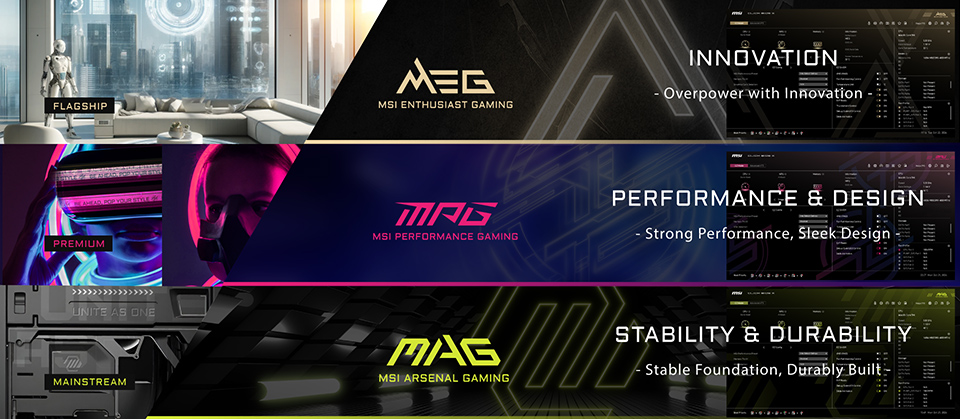
(MEG, MPG, and MAG)
MEG motherboards, for example, will feature a gorgeous gold and black interface to closely match its style of products. MPG motherboards now boast a more lively, pink color scheme, while MAG adopts its signature yellow to more closely reflect your motherboard’s design ideals.
That said, even though the look and color of these interfaces might vary, Click BIOS X offers an identical user experience on every MSI motherboard (limited only by feature availability).
Reimagining EZ Mode on Click BIOS X
EZ mode or the ‘simple’ interface on the Click BIOS X isn’t meant to hide away the options that you need in your BIOS. Instead, it gives you quick access to every functionality most users will need to get their PC up and running.
Of course, you can switch to Advanced Mode, if that’s more your thing, by hitting the ‘F7’ key.
EZ Overclocking: CPU, Memory, and NPU
EZ Mode gives you quick access to BOOST toggles – allowing you to overclock your hardware with one click.
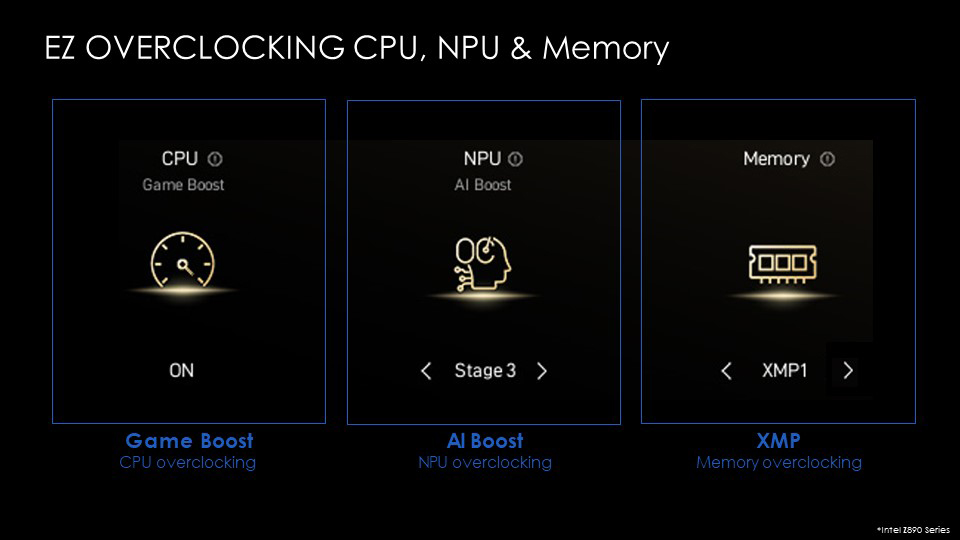
Here, you can manage features like Game boost for CPU overclocking, XMP for memory overclocking, and AI Boost for NPU overclocking.
With this feature, you can gain performance improvements as long as you have the cooling needed to tame your hardware. For example, NPU overclocking can get you up to 27% better AI performance on Intel Core Ultra’s on-chip NPU.
EZ On/Off: Toggles, Toggles, and Toggles
Have you ever wanted to quickly toggle on a feature, like the Trusted Platform Module (TPM), and instead find yourself wading through a bunch of BIOS options?
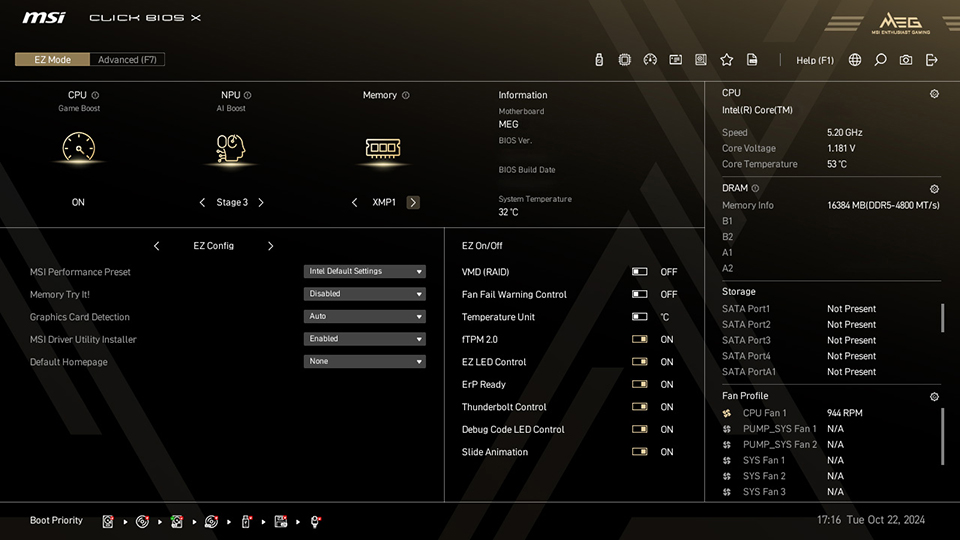
The EZ On/Off section seeks to end this madness by putting several common feature and functionality toggles within a dedicated section in EZ Mode. You can find convenient toggles for options like RGB lighting, FTPM 2.0, animations, Temperature Units, and more in this section.
EZ Config: Your BIOS, Your Way
Even though EZ Mode does a great job at giving you access to commonly-used functionality, advanced users might need a bit more.
That’s where the fully customizable ‘EZ Config / Favorite’ section within EZ Mode, can help. Simply populate your favorites with the settings/options/toggles that you need, and you can access them faster than ever.
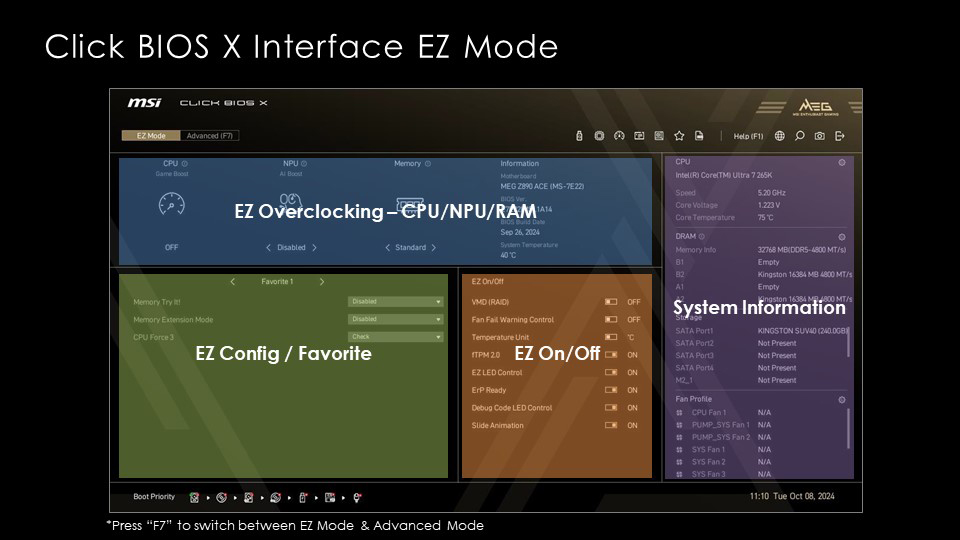
From Memory Try It! to setting RGB lighting, you decide what you see within that section.
Redesigned Hardware Monitor: Customize Your Fan Curves and More
Setting your fans up exactly the way you want them shouldn’t be a struggle. MSI Click BIOS X’s brand-new Hardware Monitor design gives you access to exactly what you need to set the perfect fan curves.
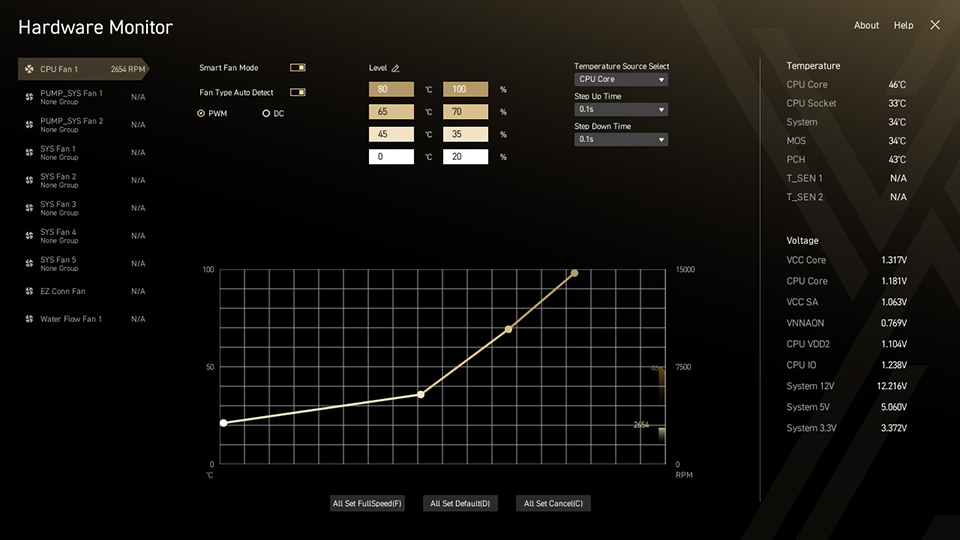
You can fine-tune the temperature and corresponding fan speed values to make sure that your system remains completely silent when it’s idle and only spins up to cool your hardware when your PC is powering through some heavier workloads. You can also drag the fan curve with your mouse to customize it to your liking.
BIOS Screenshots (F12)
You might want to take screenshots of your BIOS for work, troubleshooting, or any reason at all. MSI Click BIOS X simplifies this process by giving you a neat interface to pick a storage location for your screenshots.

MSI EZ OC Tuning for Intel Processors
Overclocking is an amazing opportunity to get more out of your current hardware. Professional overclockers, for example, can extract a ton of performance from their hardware to set world records. However, not everyone has the knowledge or the time to sit and dial in individual settings and invest into some heavy trial-and-error phases.
EZ OC Tuning controls in MSI’s Click BIOS X are designed to give you the tools you need to set overclocks without too much effort.
CPU Force 3 and Memory Force: Estimate Your CPU and Memory OC Potential
In addition to featuring innovative designs and top-tier components, MEG motherboards have a few unique features that’ll help enthusiasts and hardcore overclockers unlock new tiers of performance. MEG motherboards now feature CPU Force 3 and Memory Force — allowing them to detect and estimate the overclocking potential of your installed hardware!
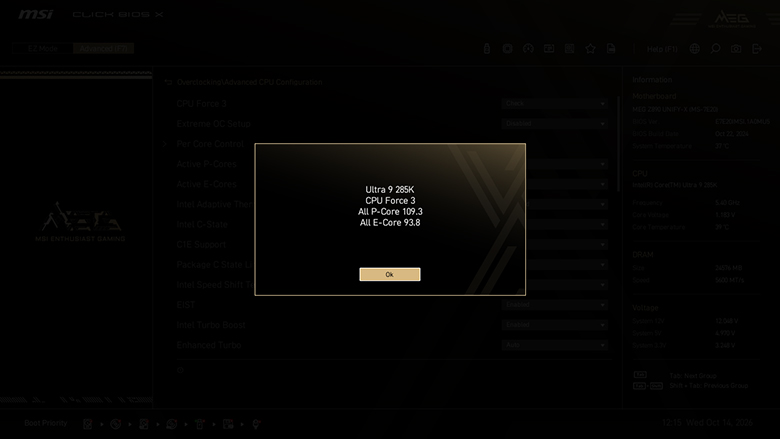

CPU Force 3 on Intel Z890 motherboards gives you an estimate of how far you’ve already pushed Intel’s Core Ultra processors (P-core and E-core), giving you the information you need to decide whether it’s worth trying for a better overclock.
Similarly, Memory Force detects how close you are to maximizing your DDR5 memory’s performance. The lower the number, the closer you are to achieving the full potential of your kit.
Of course, overclocks depend on a variety of factors so your mileage may vary compared to someone else with even slightly different hardware.
Memory Try It!
Although older MSI BIOS interfaces do give you access to the Memory Try It! feature, we felt it wasn’t very intuitive to reach. Click BIOS X places Memory Try It! within the EZ Config menu for quick access – allowing you to quickly cycle through different memory settings and rebooting.
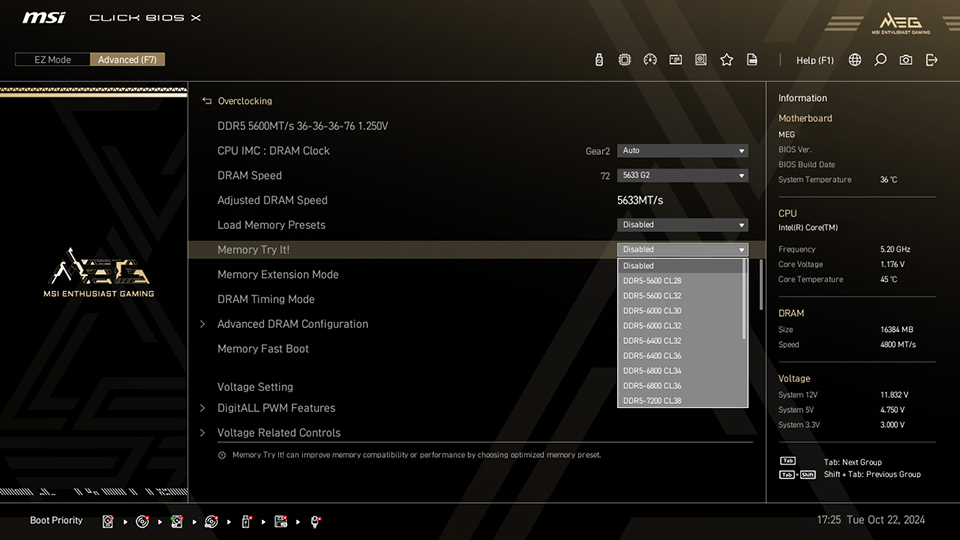
Memory Try It! now offers over 50 memory overclocking profiles (based on your memory kits), with tweaked frequency and timing settings. You should be able to find an ideal overclock for your DDR5 memory without too much hassle, thanks to this feature.
Memory Extension Mode: Optimizing Memory Performance
While Memory Try It! is a great feature to quickly try out a few settings, it can still be daunting for gamers and users not too comfortable with trying out a bunch of options.
Memory Extension Mode in MSI Click BIOS X is only a click away and offers 4 preset modes at the same frequency —Performance Mode, Benchmark Mode, High Efficiency Mode, and Memtest Mode—to optimize memory parameters like speed and latency to improve performance in scenarios like benchmarking, gaming, etc.

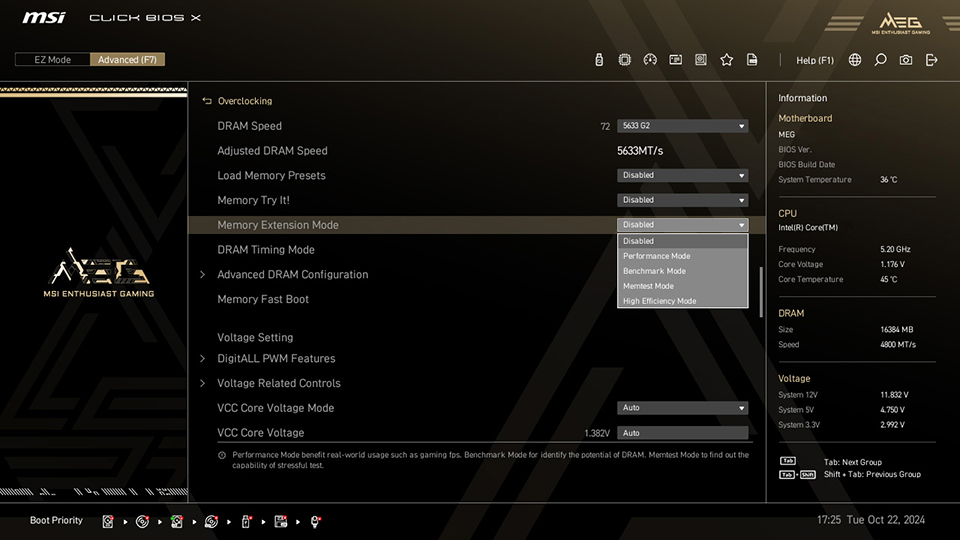
According to a few tests with Memory Extension Mode enabled, we found up to 14% better performance compared to just setting XMP and calling it a day.
MSI Performance Preset: Power Limitation Setting
The ‘MSI Performance Preset’ options allows you to choose how you want to run your hardware with 4 presets (as of publishing) — Intel Default Settings, MSI performance Settings, MSI Extreme Settings, and MSI Unlimited Settings.
Each preset changes a bunch of settings within predefined limits to get the most out of your Intel Core Ultra processors.
Intel Z890 and AMD X870 Motherboards: Featuring MSI Click BIOS X
You’ll find MSI Click BIOS X on all the current generation Intel Z890 and AMD X870 (and X870E) motherboards for Intel Core Ultra processors (Series 2) and AMD Ryzen processors (AM5). It’s a fresh new take on how a BIOS should look and feel, and focuses on improving your experience while ensuring you have access to the tools you need to get the most out of your hardware.
While we’ve tried to cover as many Click BIOS X features as we could in this article, we haven’t even scratched the surface! The full list of changes and improvements will be far too extensive to cover, so we’re excited to let you explore, experience, and enjoy many more functions and features on our latest motherboards.
You’ll find more details about MSI’s Z890 motherboard lineup for Intel Core Ultra processors (Series 2), also known as Arrow Lake, here.
If you’re looking for AMD, head here to learn more about the MSI X870E and X870 Motherboard lineup!