Say Hello to MSI EZ DIY Features with X870E and X870 Motherboards for AMD Ryzen Processors
Motherboards
MSI has a long history of making top-notch PC hardware with a focus on user-friendly designs and features. In 2022, we were the first to introduce a tool-less M.2 slot, allowing you to install storage drives without needing a screwdriver. This convenient feature received a ton of positive feedback, pushing us to expand similar easy-to-use features to even more parts of our motherboards.
Meet EZ DIY on MSI’s X870E and X870 Motherboards
With the new 800-series AM5 motherboards, MSI is adding even more DIY-friendly features that simplify the building process, improve troubleshooting, and offer more ways to customize your PC. Whether you’re a pro builder or building your first PC, we’ve focused on making your build easier and more enjoyable.

One-Hand PC Building
Placing the motherboard into your PC case can get tricky, especially when you need to watch out for case stand-offs, installing an I/O backplate, etc. The MSI X870E and X870 motherboards feature EZ Slide Installation and EZ Mounting features to simplify this process while enhancing the safety of your valuable components.
EZ Slide Installation: Pre-installed I/O Shield + Clever Backplate Design
Manually installing an I/O shield is a frustrating, and often painful element of PC building. A pre-installed I/O shield eliminates this step from the process – allowing for a straightforward, user-friendly installation process. So, we’re happy to report that ALL MSI X870E and X870 motherboards will feature pre-installed I/O Shields.
The MEG X870E motherboards come equipped with an additional metal backplate to protect the components on the back of the board, while making it more convenient to hold during installation.

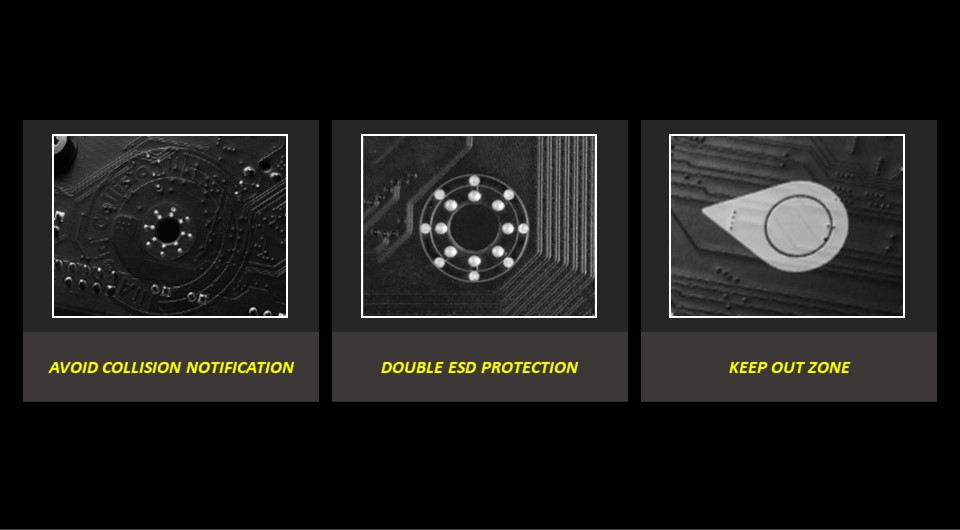
EZ Mounting: Collision Notification + Double ESD Protection + Keep Out Zone
Safety worries are another issue PC builders fret about when placing the motherboard into a case. With EZ Mounting features, you can rest assured that your components are safe, and any oversights can be corrected without a catastrophic failure.
One-Finger Installation
MSI pioneered the tool-less M.2 slot in 2022, and your positive response has kept us going. The MSI X870E and X870 motherboards now come equipped with a host of EZ DIY features that allow you to install many common PC components with a single finger – making installation, and even upgrades a breeze.
EZ M.2 Installation: EZ Magnetic M.2 Shield Frozr II + EZ M.2 Shield Frozr II + EZ M.2 Clip II
The EZ Magnetic M.2 Shield Frozr II on all MEG and MPG X870E motherboards simplifies an M.2 heatsink install/removal process to such a degree that you’ll forget you ever needed a screwdriver to get at your NVMe SSD.
For other MSI 800-series AM5 motherboards, you’ll see an upgrade to our tool-less EZ M.2 Shield Frozr II heatsink – further refining its installation and removal.
Everyone hates those tiny screws that hold down your M.2 drives because they inexplicably vanish when you’re upgrading or even building a brand-new PC. The EZ M.2 Clip II makes your SSD installation tool-less with an intuitive clip that will have your NVMe SSD installed in seconds!

EZ GPU Installation: EZ PCIe Release + EZ PCIe Clip II
Now that the SSD installation is completely tool-less, we set our sights on simplifying the installation and removal of typically one of the most expensive parts of your PC – your graphics card!
One of the most frustrating steps to remove a GPU, especially for beginners, is fiddling with an inconvenient PCIe latch under your graphics card to get it out without damaging it or your motherboard.
The EZ PCIe Release button on all MSI AM5 800-series gaming motherboards tackles this issue with a handy button to release your graphics card from its PCIe slot with one finger. Other 800-series motherboards, like MSI’s PRO series, gets the EZ PCIe Clip II – featuring an enlarged latch that’s easier to push and dislodge your graphics card without too much effort.

EZ System Command: Convenient Buttons and Switches
Whether it’s an abrupt end to a BIOS update or a borked BIOS setting that now causes boot loops or instability, issues can crop up out of nowhere. Functions like the Clear CMOS button, Flash BIOS button, and Dual BIOS switch help you get back up after an incident faster than ever.

- Smart Button: The Smart Button on the rear I/O puts you in charge – allowing you to set it to perform different tasks in your BIOS, including triggering a Safe Boot, reboot, maximum fan speed, or even toggling your Mystic Light RGB lighting.
- Boot and Reset Button: These onboard physical buttons allow users to quickly boot up or reset their system without the front panel buttons. Moreover, the Reset Button can also function as a Smart Button, offering additional functionality.
- Flash BIOS Button: Allows you to easily update your BIOS, even without a CPU/memory installed.
- Clear CMOS Button: Never deal with removing the CMOS battery again. Press this button on the back of your motherboard to reset your BIOS to default settings and boot.
- Dual BIOS Switch: A failsafe BIOS, ready to take over, just in case something goes wrong. Flip the switch, and you’re good to go with the second BIOS!
- EZ LED Switch: An easier, faster way to toggle your system lighting.
One-Glance Identification
Troubleshooting can be a painful experience without the right set of features. That’s exactly why all MSI X870E and X870 gaming motherboards now come equipped with a host of debug features, including yes, a 7-segment POST code display!
EZ Debug: EZ Digi-Debug LED + EZ Debug LED + EZ Memory Detection LED
Even the easiest PC-building experience can turn into a nightmare when you run into startup or boot issues unrelated to your OS (Operating System). To combat this nightmare, MSI’s entire Gaming Series (MEG, MPG, and MAG) motherboard lineup now boasts an EZ Digi-Debug LED – a 7-segment display with POST codes to simplify troubleshooting and debugging your boot issues.
Other MSI motherboards aren’t left out and feature EZ Debug LEDs so PC builders can quickly identify the component causing an issue in the boot process.
EZ Memory Detection LEDs remove the guesswork and answer the age-old tech support question: Is your RAM working properly? These LEDs light up when it detects a stick of memory misbehaving or doesn’t detect memory in that slot at all.

EZ Monitoring: Dynamic Dashboard III
Keeping track of CPU/GPU temperatures, clock speeds, and fan speeds is vital for system health because it can mean the difference between a stable overclock and a boot loop.
The Dynamic Dashboard III on the MEG X870E GODLIKE adds an intuitive aspect to the hardware monitoring experience. It lets you track CPU/GPU temps, fan speeds, clock speeds, and so much more in real-time on a large 3.99-inch LCD panel, helping you keep your system stable and at peak performance.

EZ Identify: Forgot Your Manual? Don’t Worry!!
Although referring to your manual is always good practice, we’ve now included a ton of important information right on the motherboard. For example, legends near the M.2 slots now display the exact type of M.2 drives (PCIe or SATA) supported by them. Similarly, you’ll find clear markings for the speeds supported by your USB ports on the rear I/O.

Do More with One Step
A few elements of the PC building process can turn it from a relaxing activity to a painful endeavor. MSI’s X870E and X870 motherboards boast a whole range of one-step features that simplify your PC building experience to a new level.
EZ Link: GODLIKE Cable Management
Although the MSI Project Zero motherboard for a clean, cable-free build was more of a concept, we took away important lessons during its inception to create the MEG X870E GODLIKE motherboard.

The EZ Link feature helps reduce cable messes without radically changing the motherboard design – enabling cleaner builds using standard PC components. It allows you to route all the messy case front panel cables, fan cables, ARGB/RGB cables, and more to the back and side of the motherboard with the EZ Bridge and the EZ Control Hub as shown above!
EZ Connecting: EZ Conn-Design + EZ Front Panel Cable
A few MSI-exclusive connectors further reduce the mess inside your PC. First up, the JAF_V1 (on MSI PRO series X870 motherboards) is a 7-pin (4-pin Fan + 3-pin ARGB) header to plug your ARGB fans in a single step.
The X870E and X870 gaming series motherboards go one step further with the JAF_V2, which is an 11-pin (4-pin Fan + 3-pin ARGB + 4-pin USB) header that allows you to connect MPG CORELIQUID P-Series Liquid AIO Coolers with a single cable! If you don’t have one, you can still use this JAF_V2 header with the included 1 to 3 EZ Conn-Cable that supports the standard ARGB, Fan, and internal USB connections on many AIO Coolers on shelves today.

Diving into the depths of your case to plug in some very tiny connectors can be a chore. The EZ Front Panel cable offers a much easier way to do this with an extension that you can use to plug in the headers outside the case conveniently.
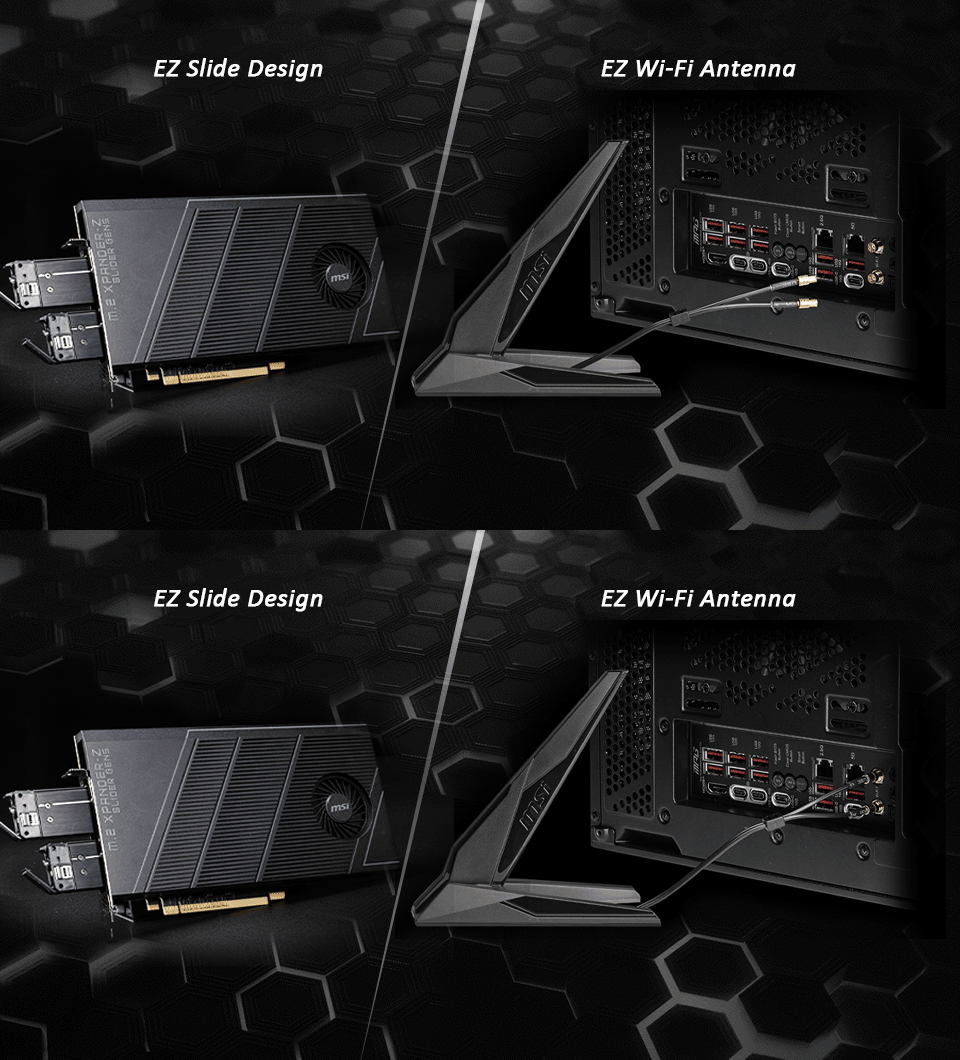
EZ Plug: EZ Slide M.2 + EZ Wi-Fi Antenna
Typically, adding or changing an M.2 drive involves opening your PC, which can be cumbersome. MSI’s M.2 XPANDER-Z SLIDER GEN5, included with the MEG X870E GODLIKE, eliminates this hassle by letting you access your M.2 SSDs from the rear I/O. It supports up to two M.2 drives at PCIe 5.0 x4 speeds, so you never sacrifice performance for convenience.
Another neat addition to several of our X870E and X870 motherboards is the EZ Wi-Fi Antenna. It plugs into place in a single step – allowing for a super-quick installation and removal.
One-Click Performance Boost
Even the easiest build process is rendered meaningless if you can’t enjoy top-notch performance from your hardware. With the MSI X870E and X870 motherboards, you’ll find a host of EZ DIY features that get your performance to the next level, whether it’s thermal, CPU, or even networking performance.
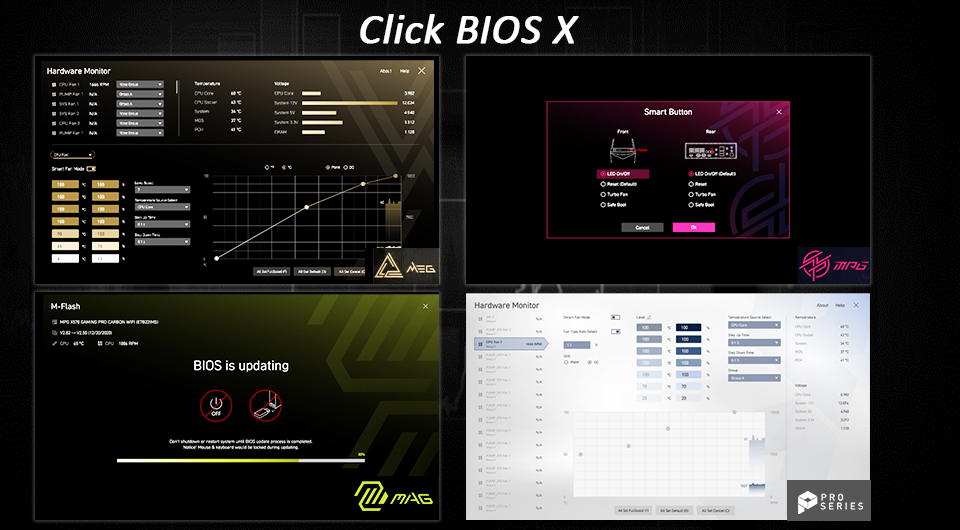
These motherboards also come equipped with our latest BIOS interface, Click BIOS X, which focuses on streamlining the interface and making it more user-friendly for both veteran overclockers and beginners.
EZ Overclocking: Game Boost + AI Boost + EXPO with Brand new Click BIOS X
Overclocking is all about getting the most out of your hardware without pushing it too far. Simply enable EXPO with a single click when using a compatible memory kit, and your memory overclock is good to go! You can also try your hand at overclocking your memory to higher clock speeds or tighter timings using Memory Try It! It gives you quick access to a list of common memory settings that you can quickly try and cycle through.
While overclocking can be overly complex for some, we’ve tried to make it more accessible with a one-click CPU overclock called Game Boost, which tunes your CPU performance to the best possible level instantly. AI Boost, on the other hand, is an intelligent algorithm that boost NPU performance to get the best possible AI performance when you need additional horsepower.
EZ Optimization: MSI Center with Smart Management
A host of AI features inject Artificial Intelligence into key aspects of your computing experience to make smarter, real-time decisions. The MSI Center gives you a clean, minimal interface to manage and tweak your PC experience to your liking. AI Engine, for example, automatically manages your PC’s performance based on the apps you’re running.
Enjoy EZ DIY Features on MSI’s X870E and X870 Motherboards
You’ll find many of these EZ DIY Features covered above on our brand-new range of X870E and X870 motherboards for Ryzen 7000, 8000, and 9000 processors.
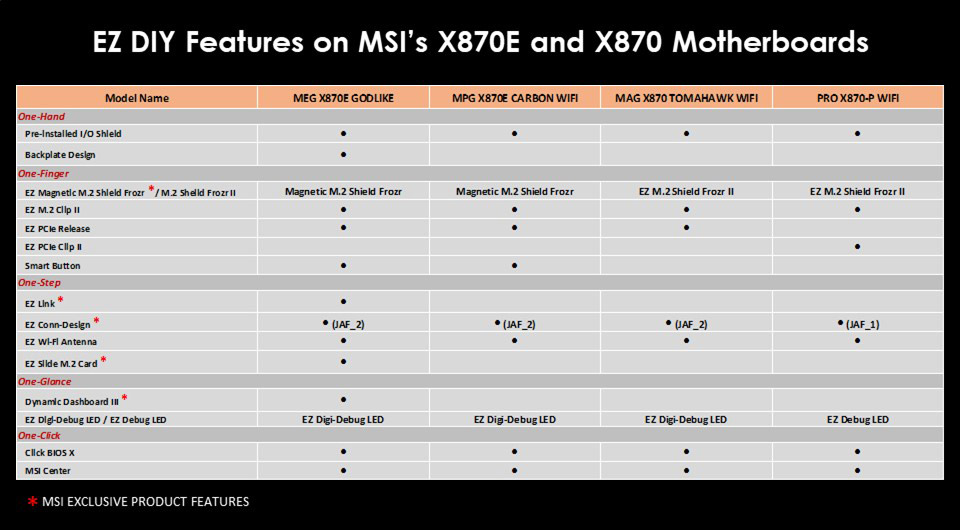
If you’re curious about MSI’s 800-series motherboard lineup, please head here to find out more!