How to customize the lighting effects of MPG EZ120 ARGB?
Motherboards ,
Case & Components
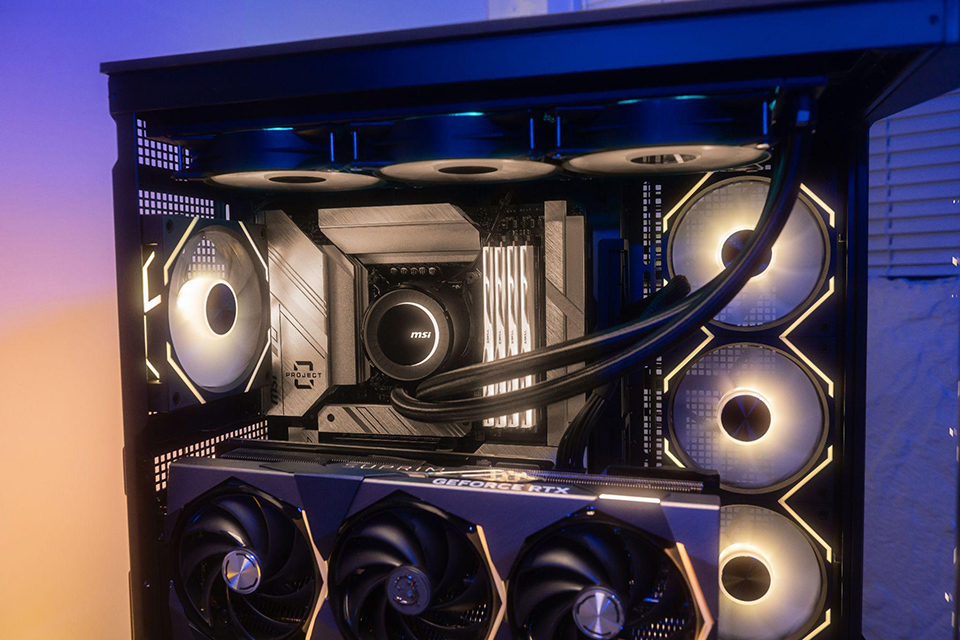
Today, we would like to tell you how to customize MPG EZ120 ARGB 3pcs/pack lighting effects with a fan hub of your preference.

Before starting the settings, let's briefly look at the fan hub of MPG EZ120 ARGB. The hub controls the fans connected to it using an MCU (a controller IC). Due to power limitations, the maximum fans support up to 6 fans for one port and 18 fans for one hub at the same time.
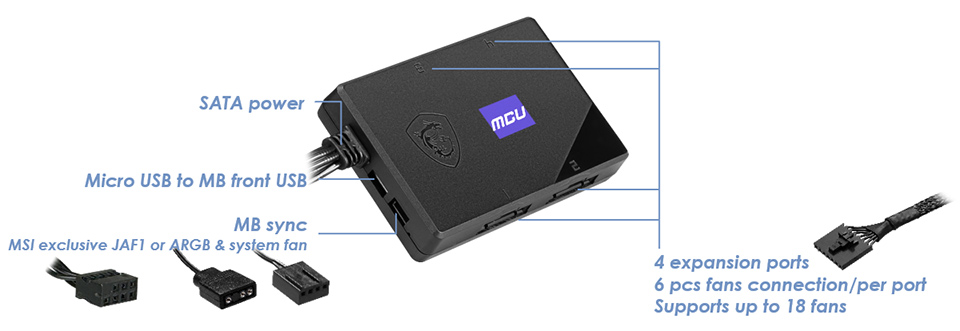
First, connect all MPG EZ120 ARGB fans of your PC build to the hub and the hub to the motherboard. There are two ways to connect the hub to the motherboard: MSI exclusive JAF or ARGB and fan cables. The JAF is an unique 7-pin cable that integrates ARGB and fan into one cable, reducing the efforts of cable management. Selected MSI Z790 MAX series motherboards are equipped with the unique JAF pin header. If your motherboard doesn't support JAF, there are general ARGB and fan cables for connection.
JAF pin header compatible list
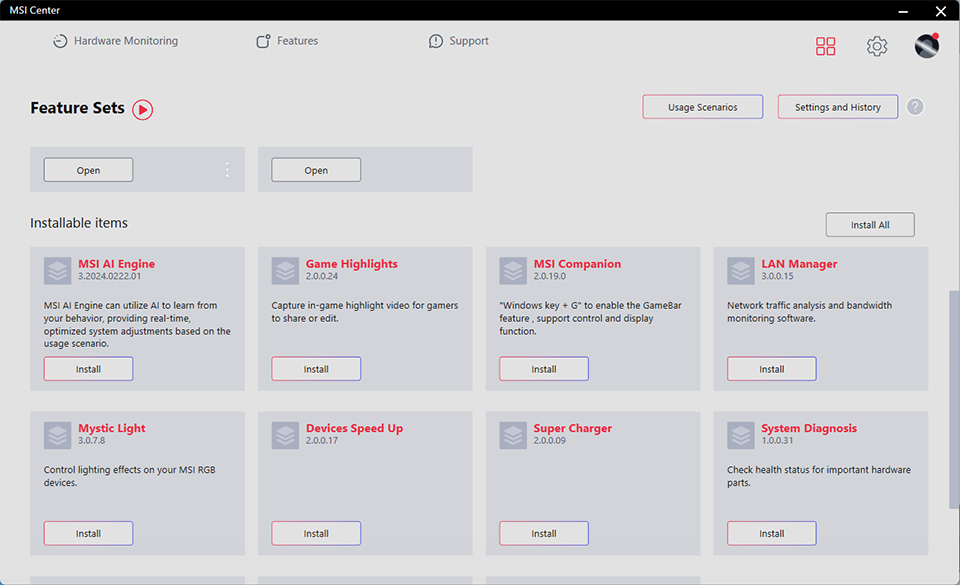
After everything is connected well, downloading MSI Center is the next step. You can download the 2.0.35.0 version of MSI Center (or newer version) from its product page, or update to the latest version by live update, and then download the Mystic Light utility from feature sets.
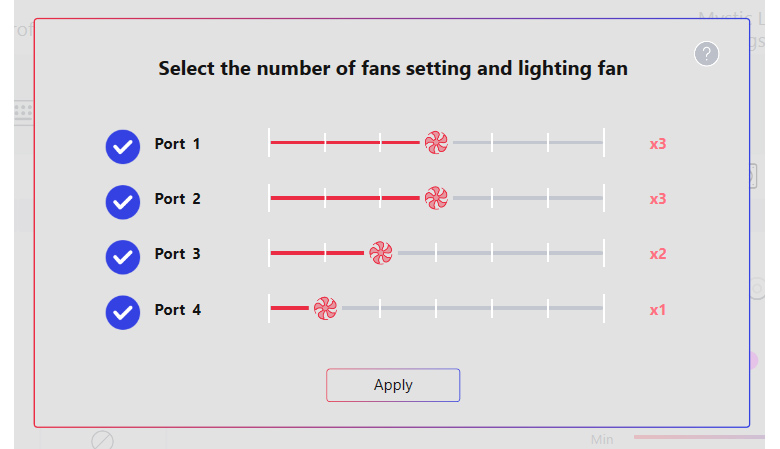
Mystic Light Setting
Set up the configuration of MPG EZ120 ARGB and fan hub initially or when you modify the configuration. The setting here is to ensure the loop is correct.
Now, you can choose lighting themes that suit your preference. The first page shows all RGB devices detected by the MSI motherboard. You can sync light effects with the motherboard or create your own style with MPG EZ120 ARGB.
If you prefer not to sync the motherboard, here are the tips:
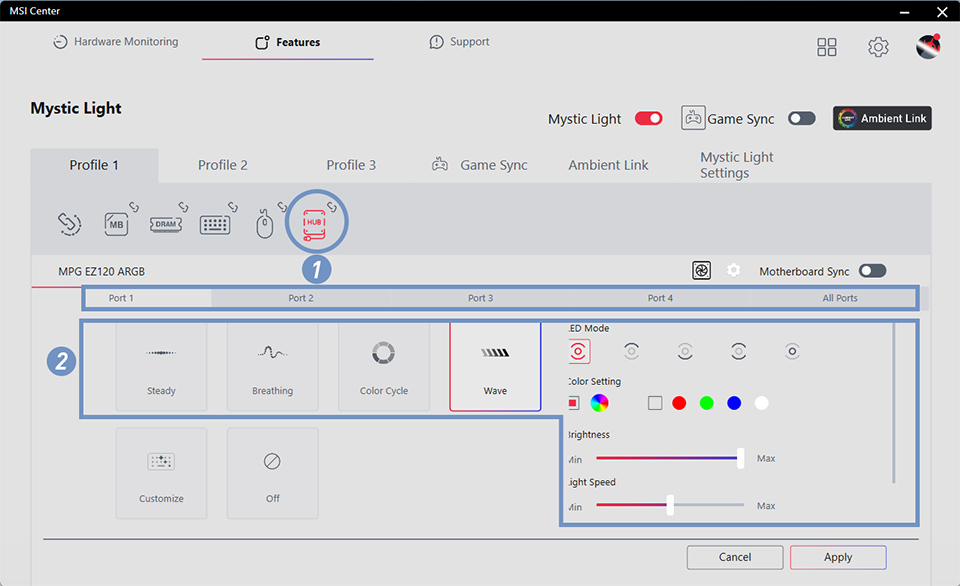
- Un-sync the hub and go to the hub page. You can simultaneously set up MPG EZ120 ARGB lighting effects or set different colors/effects by port.
- Choose one effect from four presets - steady, breathing, color cycle, and wave. You can also decide whether the chosen lighting effect should be added to all zones of the fan, the top frame, the bottom frame, the fan frame, or only the fan blades. Color settings, brightness, speed, and direction are all customizable. The colorwise direction starts from the one connecting cable and vice versa.
- Preview the effect you set - every change you make displays on the fans instantly. Check the lighting effects and fine-tune until every detail looks great.
- The most important step is to remember to click the apply button to save the settings.
Advance - Customize setup
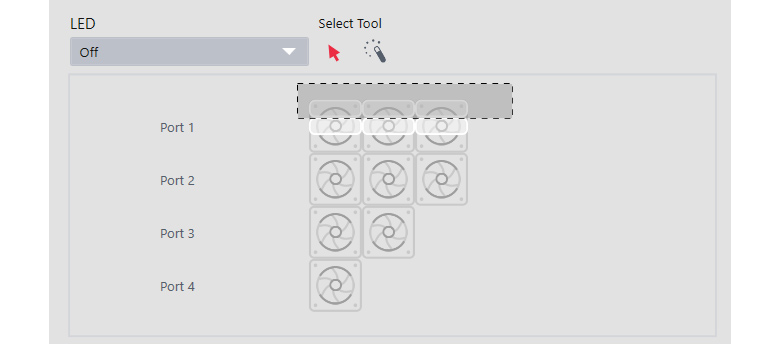
If you want to create unique vibes, try the customize page. The customize page provides a mixer for your imagination. You can set up different colors/effects by fan or zone. You can also define a different speed or direction for different zones. Multi-choose also works to save you time implementing one setting for different zones. Here's an example of quickly picking fans' frames at once.
Now, it’s your time to show your vibes. We are looking forward to seeing your creative styles. Learn more about MPG EZ120 ARGB: here.