How to upgrade to Windows 11 23H2? Let’s move to AI PC generation
All-in-One PCs ,
Desktops
Microsoft released the latest Windows 11 23H2 update at the end of October. This is a big update from Microsoft Windows Team, and we will also say goodbye to Windows 10 because Microsoft has officially announced that the support for Windows 10 will end on October 14, 2025. Today, we will guide you on how to upgrade Windows to the latest Windows 11 23H2 update and show you the cool features of Windows 11 23H2.
This year is the first year of AI PC. Many AI technologies have shown up, and development is blooming. So many vendors come up with the concept or perspective of AI PC, Microsoft as well. The latest Windows 11 23H2 update adds many features related to AI technology that can help speed up our daily work, creation, or study. Here are some AI features we would like to introduce to you about Windows 11 23H2.
AI Assistant - Copilot
Copilot is the new AI assistant of Windows 11 23H2. It replaces the previous version Cortana. And Copilot based on ChatGPT models to build up. So it can help users to solve questions or search for answers. Moreover, Copilot also can turn on or switch off the Windows functions when users don’t know how to activate them. If you are reading an essay, you can ask Copilot to summarize the article for you. It is very helpful for managing general office work or for studying.

We can ask Copilot to get answers, and inspiration, or turn on the function in Windows.
AI Painting – Cocreator
Microsoft integrates the AI model DALL-E into the original Paint App. Then, it makes the app more convenient and easy to use. We can create a painting by typing a few descriptions in Paint, just like the famous AI painting service Midjourney. Now we can simply create a picture and totally decrease the difficulty for users. Everyone can become an artist or photographer.
Note:
Cocreator function is only available in some areas and countries, even if you upgrade to the latest Win 11 23H2 you may still not be available to use. However, you can switch to another location to try this function.

Cocreator function needs to log in to your Microsoft Account to be functional as well.
Remove Background & Layers – Paint
Microsoft keeps focusing on building user-friendly environments so creators can easily create, design, draw, and even photo processing. Paint currently supports AI photo generation and we also can more easily modify the photos. Microsoft adds the Remove Background and Layers function in Paint. Now, we can simply process the photos by background removal first, then add different backgrounds in different layers to make the photo various and beautiful.

We can use the cocreator to generate AI photos and then use background removal to create more different scenic photos.
There are more features in the Windows 11 23H2 update, If you are interested in it, please visit the link below for more information. Next, we will enter the steps of upgrading to Windows 11.
Learn more about AI Features in Windows 11:
https://www.microsoft.com/en-us/windows/copilot-ai-features
https://www.microsoft.com/en-us/windows/copilot-ai-features
Upgrade to Windows 11 23H2
Most of the MSI desktop systems already preload Windows 11, so we just need a simple upgrade will be fine. The whole upgrade process is around 45 mins to 1 hrs. The most important thing is remembering to back up personal data first. In case any unexpected error leads to upgrade failure, then we still can return to the factory version and keep our data.
There are 2 ways to upgrade Windows 11 23H2, the first way is by Windows update. If your system keeps following Windows update progress, then you should be able to update to the latest update easily. After upgrading, remember to update your other apps in the Microsoft Store. Open Microsoft Store → Library → click "Update All". Congrats, you can enjoy the AI function in your system now

The first way is to follow Windows updates to upgrade Windows to the latest version.

After upgrading, remember to go to the Microsoft Store to update the rest of the apps to get AI function support.
The second way is using the Windows 11 Assistant Tool to upgrade the system directly. Visit the below link then download the tool, and follow the instructions to upgrade Windows 11. The app helps to check system requirements first. After that, it will start downloading and installing updates into your system. Until the whole process finishes, then you can start to enjoy the AI function in your system.

Go to download Windows 11 Assistant Tool in the link, then follow the app’s instructions to finish the upgrade.
Windows 11 Installation Assistant:
https://www.microsoft.com/software-download/windows11
Windows 11 Installation Assistant:
https://www.microsoft.com/software-download/windows11

The tool will ask the user to download the PC Health Check app to verify does their system is suited to upgrade to Windows 11 or not. After verifying, and then reopening the Windows 11 Installation Assistant, you will able to start upgrading to Windows 11 23H2.

This picture shows you pass the PC Health Check, so it can start to upgrade the system to Windows 11 23H2.

When the process of downloading is finished, it will pop up a notice to you to restart the system for Windows 11 upgrade. When the process finishes you can start to use the AI function in your system.
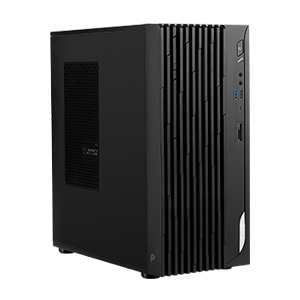
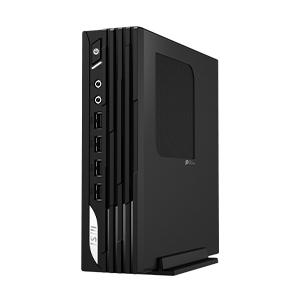
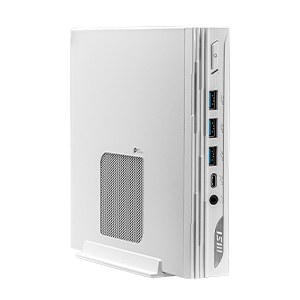
Learn more about MSI Business & PRO Product solutions. Please visit the product below list.
Business & Productivity PCs

All-in-One PCs