Preventing Thermal Throttling: What it is and How to Stop it
Case & Components
Thermal throttling is a concern for any and all PC users, on several levels. Most importantly, thermal throttling means that your PC isn’t performing to its full potential, therefore your chosen components aren’t delivering the true value that you paid for them. Perhaps worse, thermal throttling could be a sign of a deeper, potentially damaging, problem in your PC system’s configuration. But don’t worry, we are here to tell you all you need to know about thermal throttling, how to identify it as an issue, and to share methods to reduce or eliminate it through software and hardware changes. We will look closely at both CPU and GPU thermal throttling..
In this guide, we will discuss thermal throttling symptoms, causes, and solutions from a desktop PC perspective. Some of the information and methods we highlight will transfer to laptops, but for portables you can’t simply upgrade your CPU cooling solution, for example.
Safety first
Safety will also be paramount in all the hardware and software adjustments suggested. Throttling is actually a safety mechanism for heat generating performance components like CPUs and GPUs. Thus, while tolerable during occasional heavy processing loads outside your everyday PC use case, it isn’t something that should be ignored. Remember, the prolonged overheating of components, as flagged by throttling behavior, can shorten their operational life.
What is thermal throttling?
Users of modern processors actually benefit from thermal throttling. This is because thermal throttling is a safety mechanism which reduces the power going to your CPU and/or GPU when it reaches a predetermined thermal limit (usually 95–100°C for CPUs, and around 90°C for the GPU). If a processor enters that region, circuitry will cut power to try and keep the processor running just below these thermal limits. It is an automated safety measure that prevents extreme heat build-up, and delivers a kind of stability, but at a level somewhere beneath your processor’s optimal performance.
While thermal throttling is a godsend as a safety mechanism, preventing potentially harsh damage to processors and surrounding components, it is something that PC enthusiasts never (or only very rarely) want to experience. We mentioned why throttling is a bad thing for modern system performance in the intro. But in the simpler Intel Core i-series CPU heyday, we’d say that no one wants to pay for an i7 only to get i3 performance. We can’t think of such a snappy maxim for the Core Ultra AI Max Gen Plus series processors that are popular in 2026.
Thermal throttling – how does it impact?
There are differences between thermal throttling on CPUs and GPUs, and how it affects them, so let’s look at each in turn.
CPU thermal throttling
Intel CPUs typically have a thermal limit set at around 100°C, and AMD CPUs at 95°C. If they hit this temperature, they will begin to throttle. We will look at solutions to the CPU thermal throttling issue later, but for now we will underline the characteristics:
- The CPU heat source is small and central to the PC.
- A cooler needs to address this one heat spot, with one thermal paste layer and an appropriate choice of air or liquid cooler.
- Airflow matters, but isn’t going to be critical.
- Software tools to fix CPU throttling are less consistent, and sometimes desirable adjustments (undervolt, power limit, boost clock) are not available with certain processors models/tiers.
GPU thermal throttling
The graphics card heat load is large and irregular – with GPU cores, memory (VRAM), and power stages (VRMs).
- All these heat zones need to be cooled effectively for a throttle-free lag-free experience.
- In typical ‘balanced’ mainstream PC systems the GPU will consume far more power over sustained periods than the CPU.
- Changing your GPU cooler hardware is uncommon, and relatively expensive, with a limited choice of compatible models.
- Good airflow is critical.
- Software GPU overclocking, undervolting, and tuning tools are readily available and mature.
How to detect and avoid thermal throttling
Most PC systems will only thermally throttle when being used for demanding tasks. If you have a throttling problem, it can manifest pretty quickly from a cold start in gaming, rendering, or transcoding workloads – anything that puts a strain on the CPU and/or GPU. From a warm start, if you’ve been using your PC for a while ahead of staring the demanding task, throttling may happen almost immediately…
If you don’t have a broad experience of using PCs and a feel for the performance you should get with a system not afflicted by throttling, it might be hard to know if your system is badly affected. Luckily, even those without much experience of throttling detection can use readily available benchmark and monitoring tools to confirm this errant behavior.
Thermal throttling charts (an Intel example)
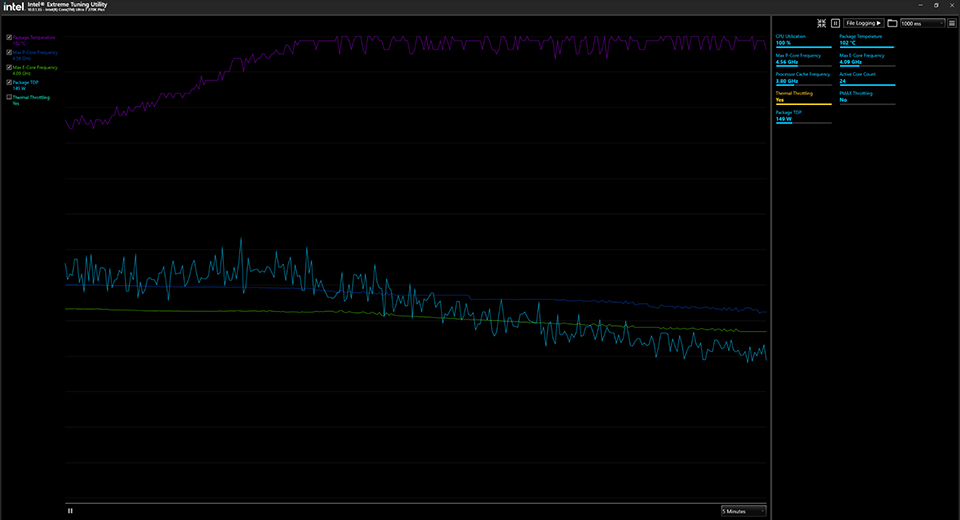
The chart above provides a visual representation of CPU thermal throttling as shown by the Intel XTU utility. You can see that after a short time the 100% CPU load has pushed the processor temperature to its thermal limit at ~100°C.
From this point onwards, the CPU automatically reduces the power and clock speed to alow the CPU to cool slightly (self protection). This happens repeatedly showing a classic sawtooth characteristic along the max P-core frequency curve which never rises above 4.56 GHz. This is, unmistakably, thermal throttling in action.
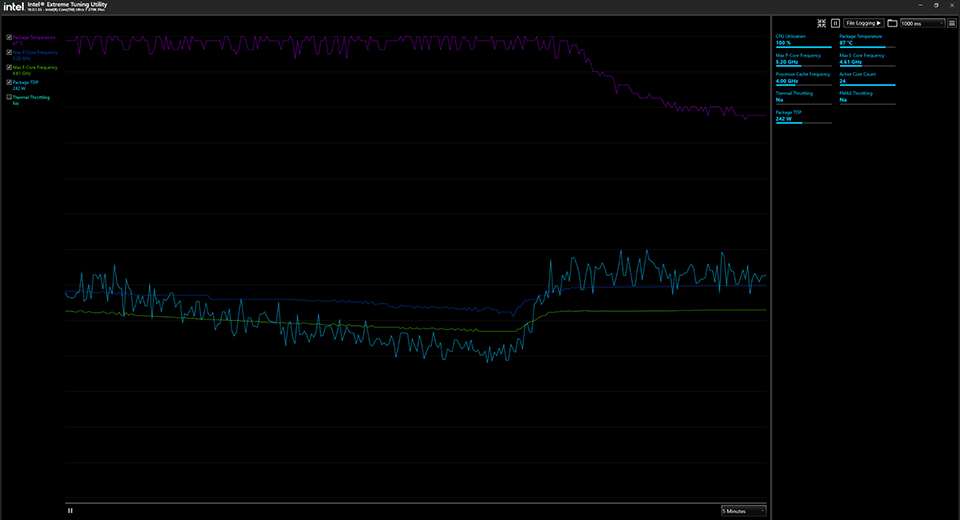
This second chart shows a CPU at 100% load but avoiding thermal throttling. Temperatures appear quite high at ~87°C, but controlled, and the frequency lines are stable rather than sawtoothing. Moreover, unencumbered by thermal issues, the P-cores can maintain a far higher frequency of around 5.28 GHz.
Two tell-tale signs of thermal throttling
You don’t always need to analyze charts to know that you have a thermal throttling problem. So, for example, you’re playing a game and after a short time you feel the performance isn’t as fast or responsive as it was, even though your system fans are noticeably spinning up. In other words, noticeable performance drop-offs and unusually high fan noise are common signals which should prompt you to check whether thermal throttling is holding your PC’s performance back.
Steps to take to confirm thermal throttling behavior
There are a multitude of tools you can use to live monitor your CPU and GPU temperatures, and to also check for throttling behavior. We find the charts in tools like HWiNFO64, GPU-Z, and MSI Afterburner very useful for checking both CPU and GPU thermals, power, and performance. They can also give you indications as to why throttling is occurring, and from there we can consider the various solutions.
For checking whether your CPU is thermal throttling, take the following steps:
- Start HWiNFO64 (for example), open up the sensors and find the CPU section.
- Load an application that will tax the CPU. Free benchmarks like Cinebench, using the multicore CPU rendering tests, are ideal.
- Start the benchmark and run in continuous mode, if there is one.
- While the load is running, switch back to HWiNFO64 and see how the active clocks behave – can they sustain maximum boost speed throughout the testing? Also, you can check HWiNFO’s status display for information about “Thermal Throttling” / “PROCHOT” / “Tctl/Tdie” (depends on CPU vendor). You might also see the “Effective Clock” stats reduce over the duration of the test – signaling throttling behavior.
To determine whether your GPU is thermal throttling, take the following steps:
- Start GPU-Z and switch to the sensors tab. Check to see if the GPU temperature, hot spot, memory temperature, and PerfCap Reason charts are being streamed in real-time (If not, add them via the hamburger menu, three lines to the upper right of the window).
- Run a 3D stress test or benchmark in continuous mode. Check back with the GPU-Z charts, and you will see if your GPU is hitting its thermal limit and is throttling for one or more ‘PerfCap’ reasons (Power, Voltage, Thermal).
- I tested this in a slim Nvidia RTX40 series laptop and noticed all three throttling reasons were being flagged after a couple of minutes of testing. Laptop GPU throttling can a major limiter of performance, particularly in thin and light designs.
So, your CPU and/or GPU is throttling – what to do?
The charts don’t lie, you will have now found out whether your PC desktop is throttling for some reason or another.
Let’s consider CPUs first, and we are going to keep this simple. If your CPU is throttling, you have probably not fitted a desktop CPU cooler that is capable enough.
Those who notice that their CPU cooler fan is not too noisy, and experience only rare / occasional throttling, might be lucky enough to find a cure with a change of thermal paste or thermal pad. While doing that check, you can also look for installation errors such as thermal paste or thermal pads being absent, or heat sink protective films being left installed (both big oops!).
If your throttling is more severe, sustained, and the CPU is causing a lot of heat and noise (from the cooler fan), swapping the cooler might be the cleanest fix. Check the CPU TDP from the processor manufacturer, and find a CPU cooler that comfortably exceeds that figure (then it will be able to run slower, quieter). Intel’s help documentation about throttling refers to a CPU cooler as a “processor thermal solution.”
Some people have a very strong stance on the air cooler vs liquid cooler debate. Yet, for most mainstream / multiplier locked processors, CPU air coolers are often the unarguable sweet spot.
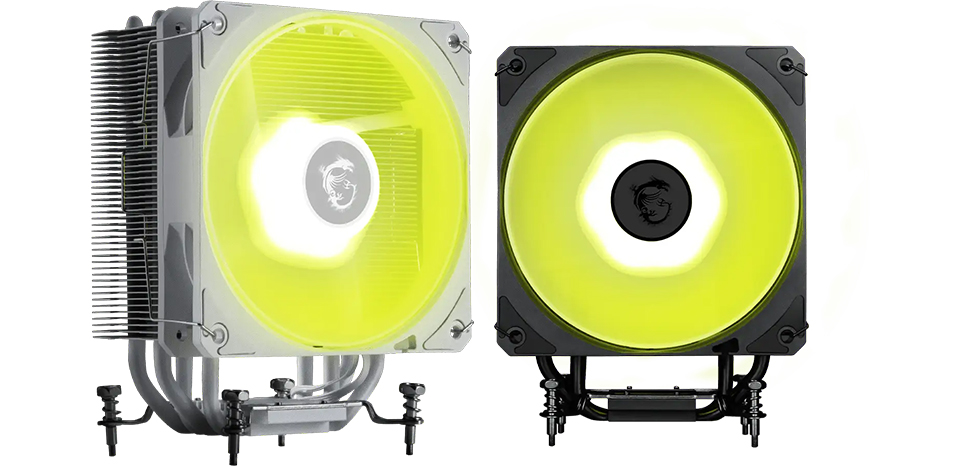
MSI has several attractive options for both air and liquid CPU cooler shoppers. For a keenly priced capable tower CPU air cooler with color finish and RGB lighting options you could consider is the MAG COREFROZR AA13. Its data sheet confirms this quad-heatpipe design with CycloBlade7 fan fits AM4, AM5, LGA 1700 and LGA 1851 motherboards and corresponding CPUs, and can handle 240W TDP processors at a calm and quiet ~30dBA noise level.
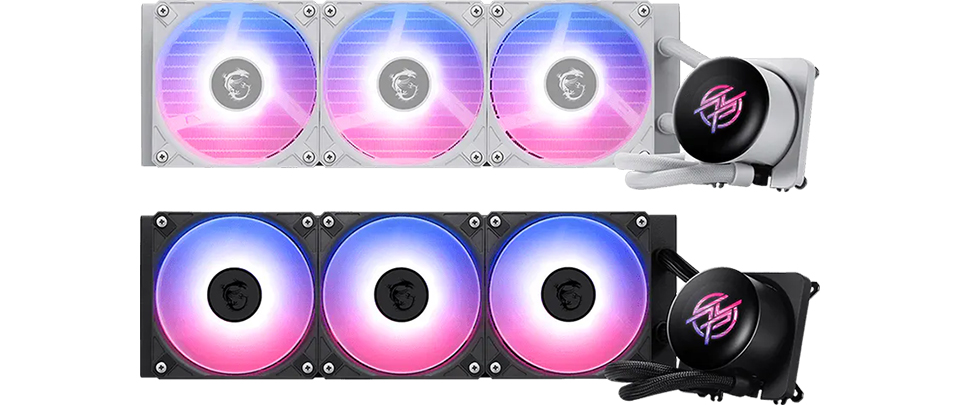
For the ultimate in cool CPU computing, some PC DIYers swear liquid cooling solutions are a must. They certainly turn up the TDP levels beyond the capabilities of a simple air-cooler, and 360mm solutions like the new mainstream MAG CORELIQUID A15 360 and premium MPG CORELIQUID P13 360 are the best – due to the physical radiator/fan cooling capacity – as long as your case has the capacity.
Both these high-airflow, low noise ARGB GEN2 AIO coolers from MSI deliver enhanced cooling for stable unthrottled performance with whisper quiet fans and pumps. AiOs like these are recommended by AMD for cooling its higher-end processors, particularly higher-TDP versions of the Ryzen 9 and Ryzen 7 (and X3D) chips. That’s why AMD doesn’t provide a boxed air cooler with its top-performers – you are expected to go AiO. Intel recommends AiOs like the A15 and P13 for cooling its high-TDP overclocking friendly ‘K/KF/KS’ suffix processors and high-end i7/i9/Ultra 7/9 models.
GPU throttling fixes
In contrast to our CPU throttling fix instincts, generally preferring a hardware solution, with GPUs most will find software adjustments allow them to reach a performance sweet spot.
This software-first direction is preferred here because swapping the cooler supplied by your GPU vendor isn’t as mainstream or affordable a solution. There may be a handful of new cooling shroud or water blocks available for your specific GPU, and we don’t want to dismiss upgrading hardware, but most enthusiasts will be happy with software tweaks, as long as their graphics card has a respectable solution in terms of thermal mass, fins, fans, etc.
As with CPUs, trying a simple ‘repaste’ can be worthwhile, and help cut GPU temperatures by double figures if you are lucky. If more is required, though, it is time to follow our thermal throttling checks for GPUs – outlined above – make settings tweaks, then retest, make tweaks, retest, until you feel happy with the result.
This complex topic of GPU tuning, particularly undervolting to achieve better temperatures through lower power consumption, is beyond the scope of this blog post. Mainly as there are no universal settings to apply, even the exact same GPU models from the same vendor, like MSI, will tune differently, due to the ‘silicon lottery.’
For those with the newest gen Nvidia RTX 50 series graphics cards, we have a special treat, though. MSI’s technical marketing team created a guide to MSI Afterburner Overclocking & Undervolting (embedded above). If you are aiming to cut thermal throttling, though, you will be watching and following the guide with more interest in undervolting, and less for the overclocking possibilities.
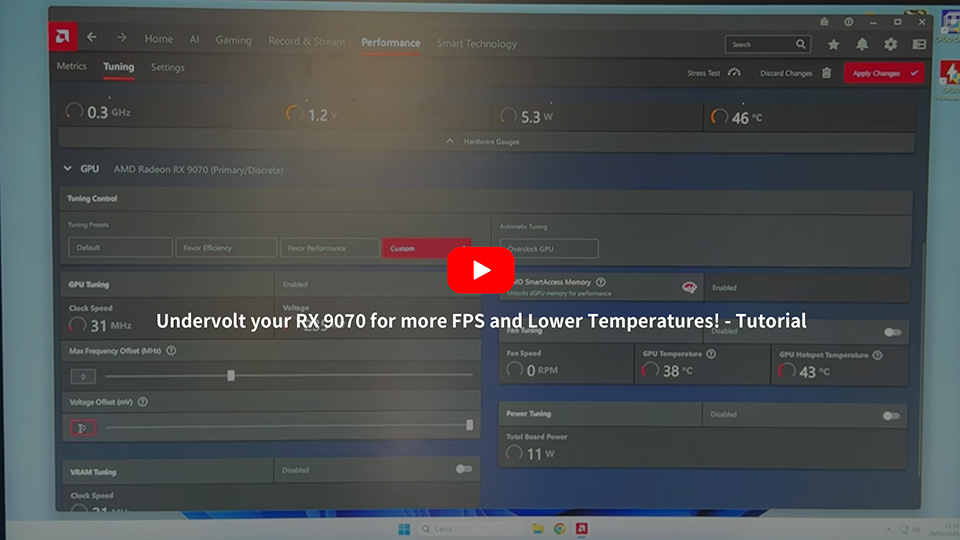
It isn’t difficult to find similar guides for older gen Nvidia graphics cards, and AMD cards from various generations using a little Google-Fu. For tuning my personal Radeon RX 9070, I found ImWaterPSUs guide to Undervolt your RX 9070 for more FPS and Lower Temperatures took clear, easy to follow steps, precipitating worthwhile results. That TechTuber has guides for many different GPUs.
Cleanliness is next to godliness – and can shave off a few degrees
Lastly, remember to keep your PC clean. A smooth and cool running PC is a well tuned machine and the ingress of dust, household debris, and even bugs will have an adverse effect on this balance. So, regularly clean those dust filters, blast those cobwebs, vacuum that debris in or near your PC to keep it shipshape.
Thermal paste isn’t usually something that needs changing more than once every three years, on average. If thermals have deteriorated since new, it could be a contributor though. Please take special care if the computer maker built the system and used ‘liquid metal’ type thermal material on the processor. Liquid metal doesn’t dry but can migrate and leave dry spots. But the worst thing about liquid metal is if it spills/flows onto other components in your computer, where it can damage by corrosion, or cause electrical short-circuits.
A modern trend among PC DIYers is to switch from using thermal paste to thermal pads. Singled out for particular praise are simple cut-to-size Honeywell PTM7950 sheets, and it may be worth considering this easy to handle phase-change material if you think it is time for a paste change.
Though we have focused on desktops above, laptop owners need to be particularly careful with regular cleaning and checking for blocked fans and vents. This is a big problem with laptops if they are regularly rested on soft furnishings, sofas, beds, etc.