The Best AI Assistant, MSI AI Engine.
Motherboards
AI is already become a popular topic in recent years. Generative AI is one of the topics. Users just need to type a simple prompt and then create pictures, articles, music, and even video. It benefits the people who work in creation or innovation. The second topic is the AI assistant, which can help users work easily and offer proper help. MSI recently released two AI software, AI Artist and AI Engine. AI Artist is a generative AI software that can create pictures by typing prompts or picture references. AI Engine which can help to automatically optimize system performance or configuration when you use the software. Next, we will guide you on using MSI AI Engine in the MSI Z790, B760, Z690, B660, X670, B650, and A620 motherboards.

MSI AI Engine is the best AI helper for your PC system.
1. Enable AI Engine
Firstly, you can install AI Engine in Feature Sets in MSI Center. After installation, you can activate the AI Engine function. MSI provides three features of categories for you to sync the applications you want to perform, Light, Visual, and Performance. You can make the applications to link those features to create a comfortable environment. For example, Add EyeRest, and silent mode when you have online meetings. After that, when you open Zoom, and Skype that kind of communication application the setup will automatically optimize the system for you flawlessly. You don't have to spend extra time to set up and increase the work effectiveness.

Light, Visual, and Performance categories. These features automatically adjust Mystic Light, True Color, and User Scenario settings in the MSI center for the match applications. If you don’t want to keep the AI Engine working all the time, you also can switch it off.
2. Add the applications to sync with the AI Engine
What if, the application doesn’t work with AI Engine? MSI supports customization features for you. You can add the application you want to use to the intelligent profile. Click the setting icon within the red frame next to the AI Engine Switch. It will pop up a settings page, click Add APP, and then we can manage the application to sync the AI Engine automatically.
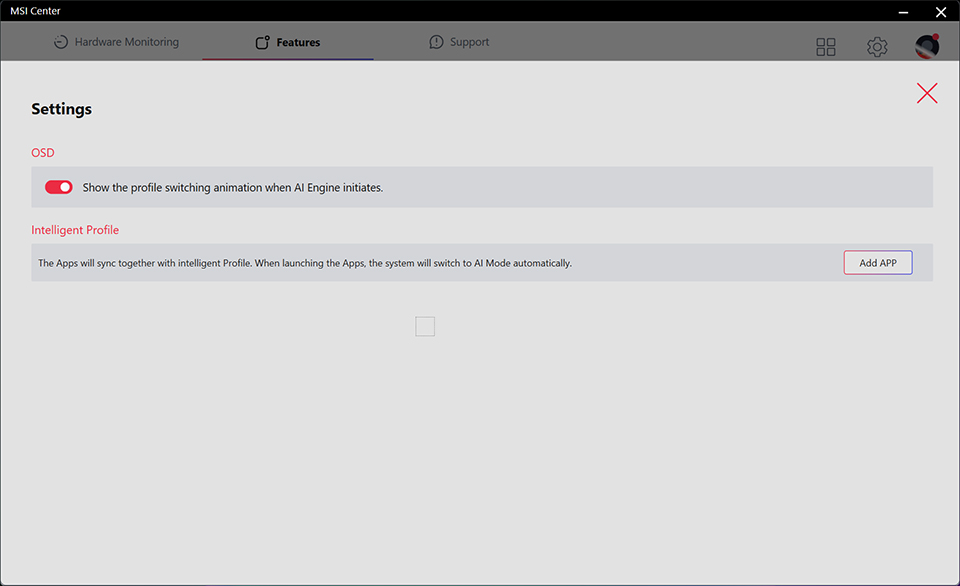
Click Add APP, then we can go to the manage page to add the application.
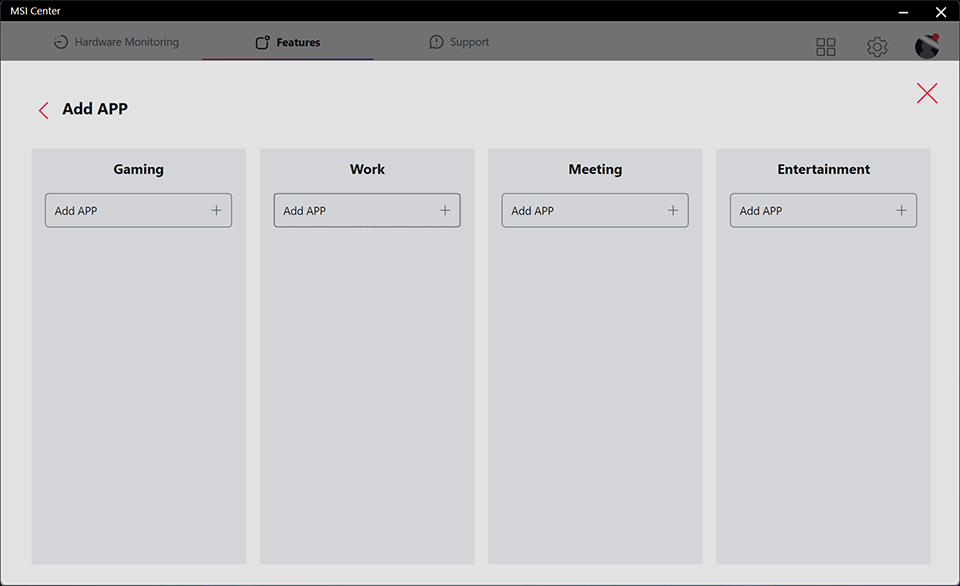
MSI plans four categories for users to define the application sync with AI Engine. Moreover, you need to add an exe file of the application. Shortcuts are not workable.
Noted: The three options are related to MSI software in Feature sets. Please install Mystic Light, True Color, and User Scenario before activating the AI Engine.
When all the settings and configuration are finished, we can start using the system. As the AI Engine detects your current application windows. The profile you configured will be applied to the system seamlessly. Like the below example pictures.
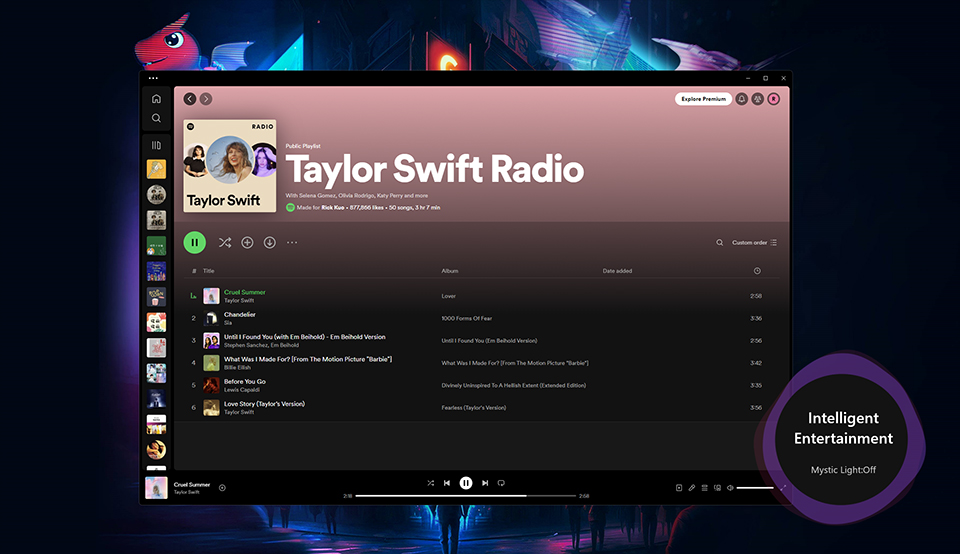
When the profile by applied, there is a notice shows up letting you know which function AI Engine does.
For the OSD notice, you can switch on or off. If you feel annoyed, just switch it off then it won’t show up when the AI Engine operates.
MSI AI Engine Support list
Intel 700 series motherboard:
https://www.msi.com/Landing/intel-14th-13th-gen-raptor-lake-z790-b760-best-motherboard#MSI-B760-SERIES
Intel 600 series motherboard:
https://www.msi.com/Landing/intel-12th-gen-alder-lake-z690-h670-b660-h610-motherboard
AMD 600 series motherboard:
https://www.msi.com/Landing/amd-am5-x670-b650-motherboard
Intel 700 series motherboard:
https://www.msi.com/Landing/intel-14th-13th-gen-raptor-lake-z790-b760-best-motherboard#MSI-B760-SERIES
Intel 600 series motherboard:
https://www.msi.com/Landing/intel-12th-gen-alder-lake-z690-h670-b660-h610-motherboard
AMD 600 series motherboard:
https://www.msi.com/Landing/amd-am5-x670-b650-motherboard